
A good indoor security camera can give you greater visibility into what is happening at home, whether you’re checking on your pets while you’re away, monitoring an entryway, or keeping an eye on another important area.
Today’s indoor cameras offer much more than basic video recording. Features such as 1080p or 2K video, night vision, motion detection, person recognition, two-way audio, smart alerts, cloud storage, local storage, and privacy modes can make a significant difference in everyday use.
However, choosing the right camera isn’t simply about buying the model with the highest resolution. You also need to consider where you’ll place it, how you want to store recordings, whether you need a subscription, how much privacy control you want, and which smart-home platform you already use.
In this guide, we’ll compare some of the best indoor security cameras for different needs and budgets, followed by a detailed buying guide to help you make the right choice.
Important: Indoor security cameras are designed for lawful home monitoring. Always respect the privacy of family members, guests, roommates, and anyone else who may be recorded.
Our Top Picks
Best Overall: TP-Link Tapo C210
Best Budget: Blink Mini 2
Best for Google Home: Google Nest Cam Indoor
Best for Alexa: Ring Indoor Cam
Best Privacy: Arlo Essential Indoor Camera
Best Local Storage: Eufy Indoor Cam C220
Best Pan-and-Tilt: Reolink E1
Best Smart-Home Hub: Aqara Camera Hub G3
Best Premium Smart Home: Philips Hue Secure Camera
Comparison Table: Best Indoor Security Cameras
| Camera | Best For | Video Quality | Night Vision | Pan/Tilt | Smart Detect-ion | Storage | Two-Way Audio | Privacy Features |
|---|---|---|---|---|---|---|---|---|
| TP-Link Tapo C210 | Best Overall | 2K | Yes | Yes | Motion Detect-ion | Cloud + microSD | Yes | Privacy Mode |
| Google Nest Cam Indoor | Best Google Home | 1080p | Yes | No | Person Detect-ion | Cloud | Yes | Privacy Controls |
| Ring Indoor Cam | Best Alexa Ecosystem | 1080p | Yes | No | Motion Detect-ion | Cloud | Yes | Privacy Cover |
| Blink Mini 2k | Best Budget | 1080p | Yes | No* | Smart Detect-ion | Cloud + Local** | Yes | Privacy Controls |
| Eufy Indoor Cam C220 | Best Local Storage | 2K | Yes | Yes | AI Detect-ion | Local + Cloud | Yes | Privacy Features |
| Arlo Essential Indoor Camera | Best Privacy | 2K | Yes | No | Smart Detect-ion | Cloud | Yes | Privacy Shutter |
| Wyze Cam v4 | Best Value | 2.5K | Yes | No | Smart Detect-ion | microSD + Cloud | Yes | Privacy Controls |
| Reolink E1 | Best for Pan/Tilt | 4MP | Yes | Yes | Smart Detect-ion | Local + Cloud* | Yes | Privacy Features |
| Philips Hue Secure Camera | Best Premium Smart Home | 1080p | Yes | No | Smart Detect-ion | Cloud | Yes | Privacy Controls |
| Aqara Camera Hub G3 | Best Smart-Home Hub | 2K | Yes | Yes | AI Detect-ion | Local + Cloud | Yes | Privacy Mode |
Note:
Features vary by exact model and generation.
Local storage may require an additional compatible accessory or hub depending on the model.
Affiliate Disclosure: This post contains affiliate links. We may earn a commission if you make a purchase, at no extra cost to you.
1. TP-Link Tapo C210 — Best Overall
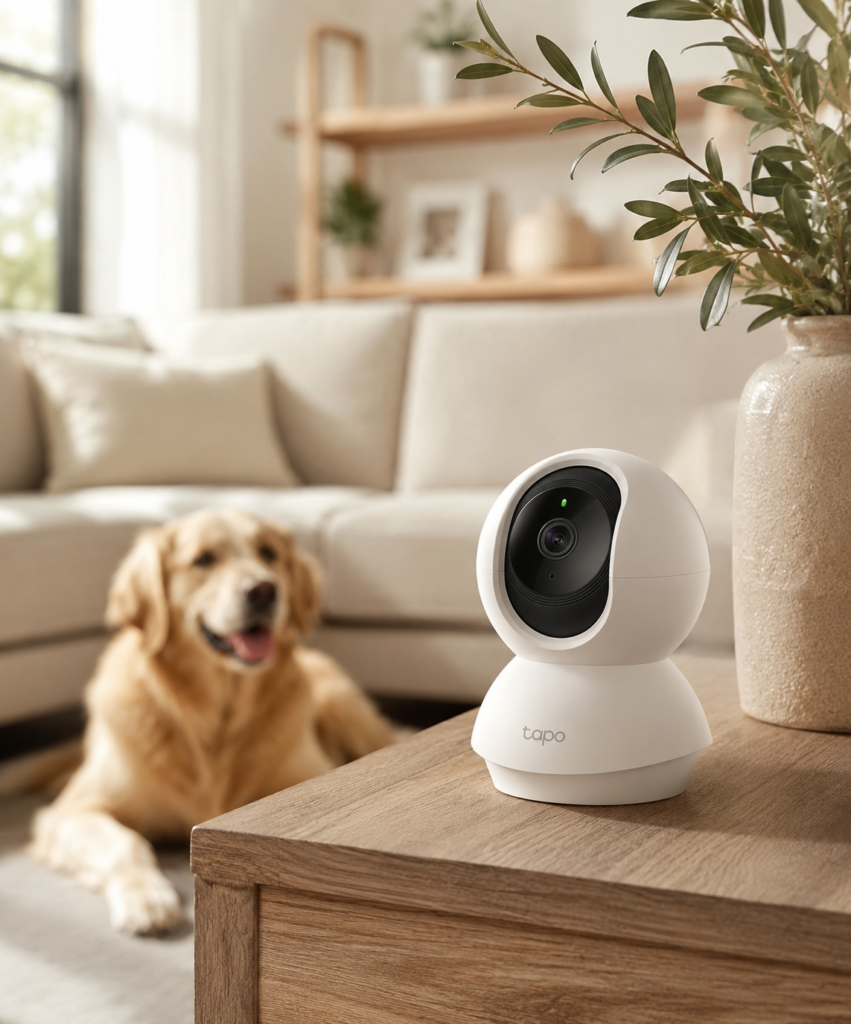
⭐⭐⭐⭐⭐ 4.5/5
The TP-Link Tapo C210 is an excellent choice for shoppers who want a feature-rich indoor camera without moving into premium pricing.
Its 2K resolution provides more detail than basic 1080p cameras, while pan-and-tilt functionality allows you to view a larger area from a single camera position.
Why We Like It
- 2K video
- Pan and tilt
- Night vision
- Motion detection
- Two-way audio
- microSD storage support
- Privacy mode
- Strong value
Best For
Most households looking for a versatile indoor camera.
Ideal Locations
- Living rooms
- Entryways
- Pet areas
- Hallways
- Home offices
Consider Before Buying
If privacy is your highest priority, compare local-storage and physical privacy options before choosing a camera.
2. Google Nest Cam Indoor — Best for Google Home
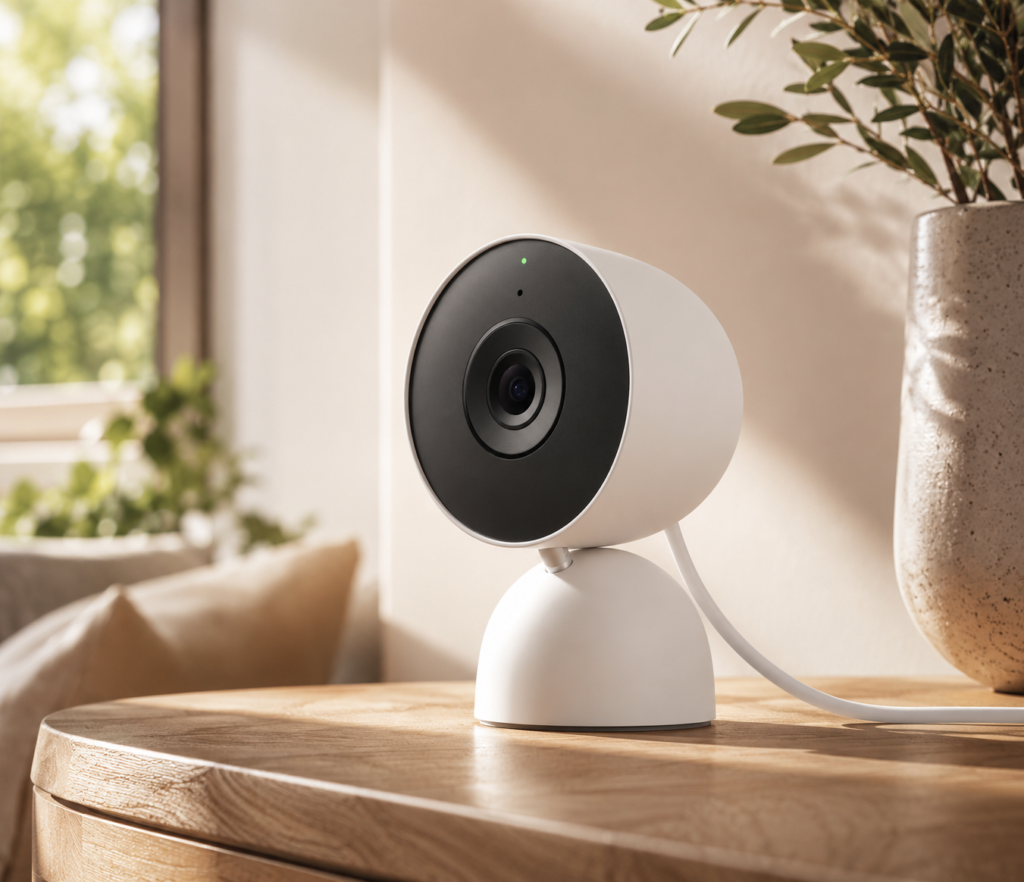
⭐⭐⭐⭐⭐ 4.6/5
If your smart home already uses Google Home, the Google Nest Cam Indoor can integrate naturally into your existing setup.
Its biggest advantage is the combination of camera monitoring and Google’s smart-home ecosystem.
Why We Like It
- Google Home integration
- Intelligent alerts
- Night vision
- Two-way communication
- Clean, minimalist design
- Convenient app experience
Best For
Google Home and Android households.
Consider Before Buying
Some advanced detection and recording features may depend on a subscription plan, so consider the long-term cost rather than only the camera’s purchase price.
3. Ring Indoor Cam — Best for Alexa Users
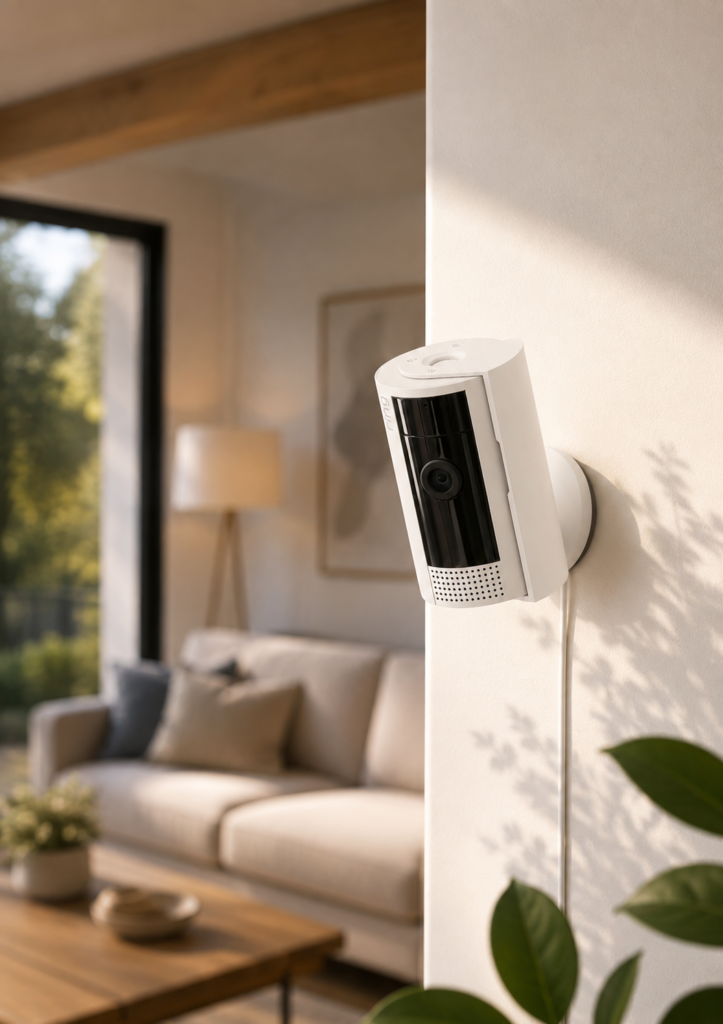
⭐⭐⭐⭐⭐ 4.7/5
The Ring Indoor Cam is a natural choice for households already using Alexa and other Ring security products.
Its compact design makes it easy to position on a shelf, desk, or other suitable indoor surface.
Why We Like It
- 1080p video
- Night vision
- Motion alerts
- Two-way talk
- Alexa integration
- Privacy cover on supported models
Best For
Alexa users building a Ring security system.
Ideal Locations
- Entryways
- Living rooms
- Hallways
- Home offices
4. Blink Mini 2k — Best Budget Option
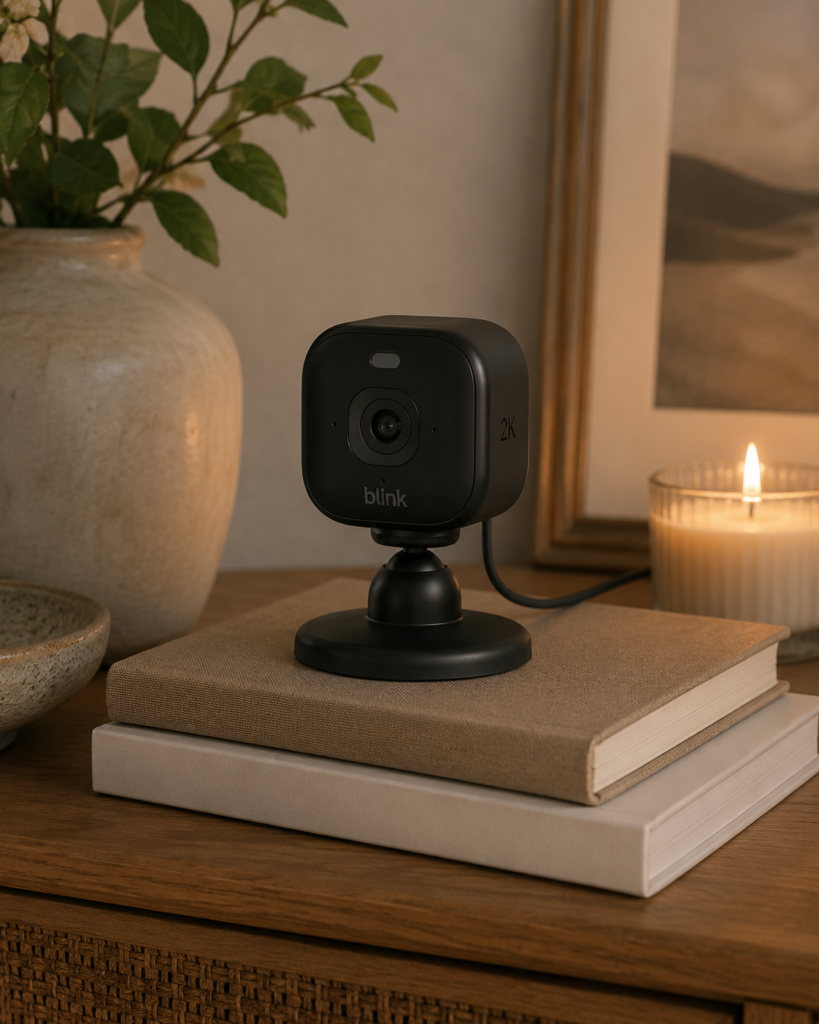
⭐⭐⭐⭐⭐ 4.6/5
If you want basic indoor monitoring without spending heavily, the Blink Mini 2 is worth considering.
Its small size makes it easy to position in areas where a larger camera might look intrusive.
Why We Like It
- Affordable
- Compact
- 1080p video
- Night vision
- Motion detection
- Two-way audio
- Alexa integration
Best For
Budget-conscious shoppers and first-time security-camera buyers.
Consider Before Buying
Review Blink’s current storage and subscription options before purchasing if recorded video is important to you.
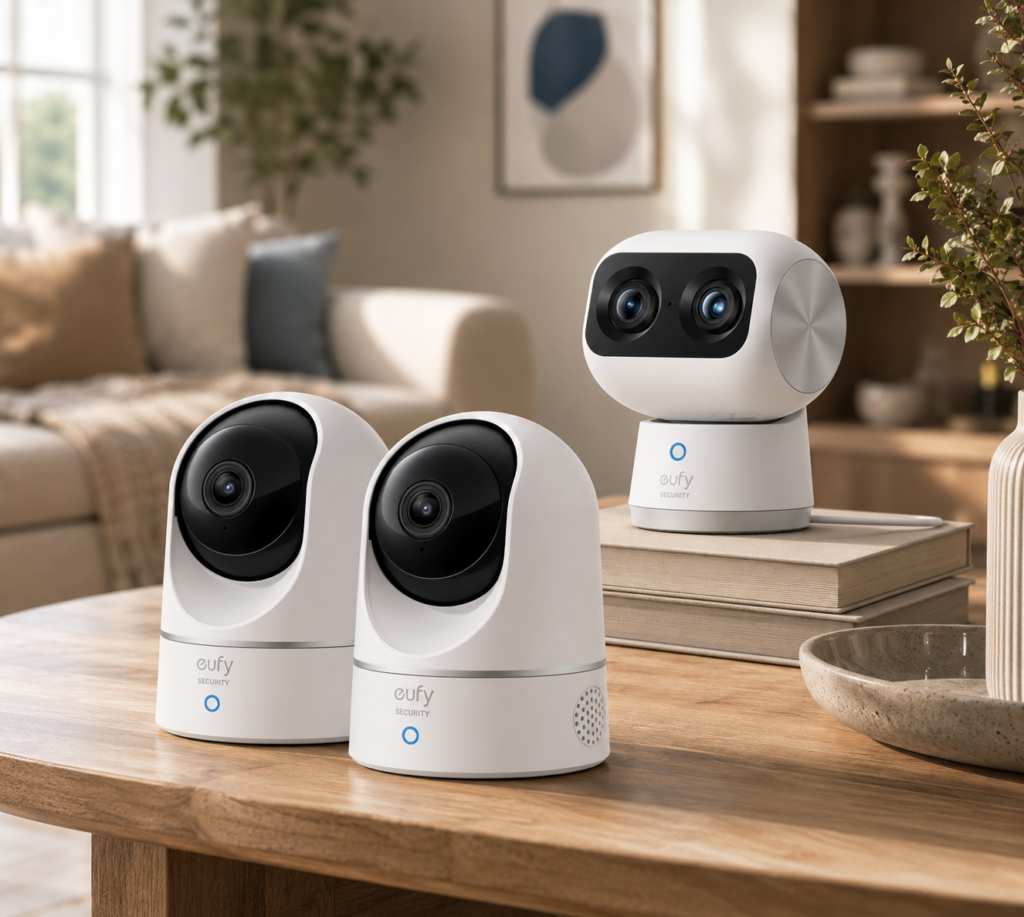
5. Eufy Indoor Cam C220 — Best for Local Storage
⭐⭐⭐⭐⭐ 4.6/5
For shoppers who want more control over recorded footage, local storage can be an important consideration.
The Eufy Indoor Cam C220 combines 2K video with pan-and-tilt functionality and local-storage options on supported configurations.
Why We Like It
- 2K resolution
- Pan and tilt
- AI detection
- Local storage
- Two-way audio
- Night vision
Best For
People who prefer local video storage.
Why Local Storage Matters
Local storage can reduce your dependence on monthly cloud subscriptions and may provide greater control over where recordings are kept.
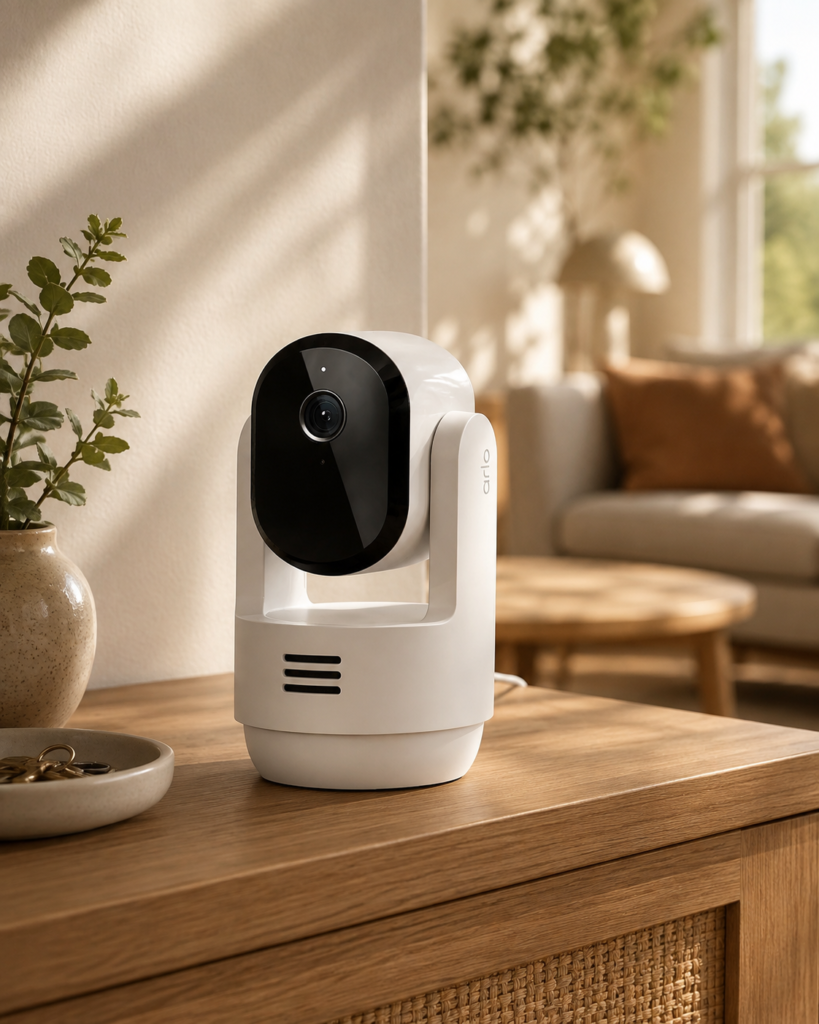
6. Arlo Essential Indoor Camera — Best Privacy Features
⭐⭐⭐⭐☆ 4.3/5
Privacy is one of the most important considerations when placing a camera inside your home.
The Arlo Essential Indoor Camera is designed with privacy in mind and includes a physical privacy solution that can cover the lens when monitoring isn’t wanted.
Why We Like It
- Strong privacy design
- 2K video on supported versions
- Smart detection
- Night vision
- Two-way audio
- Modern design
Best For
People who want a physical privacy control.
A physical privacy mechanism can be particularly reassuring in bedrooms, home offices, or other sensitive areas.
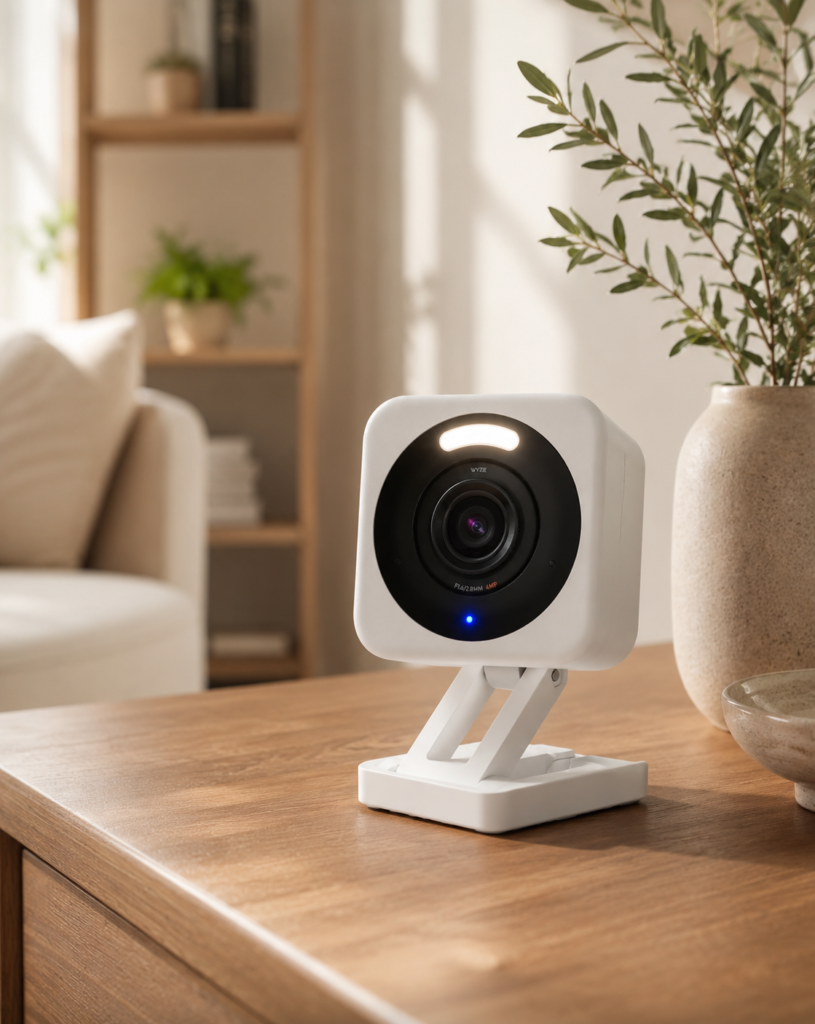
7. Wyze Cam v4 — Best Value
⭐⭐⭐⭐☆ 4.3/5
The Wyze Cam v4 is an attractive option for shoppers who want strong specifications at a relatively accessible price.
It offers higher-than-1080p video resolution and supports features designed for everyday indoor monitoring.
Why We Like It
- 2.5K video
- Night vision
- Motion detection
- Two-way audio
- Local storage support
- Competitive pricing
Best For
Shoppers looking for strong features without a premium price.
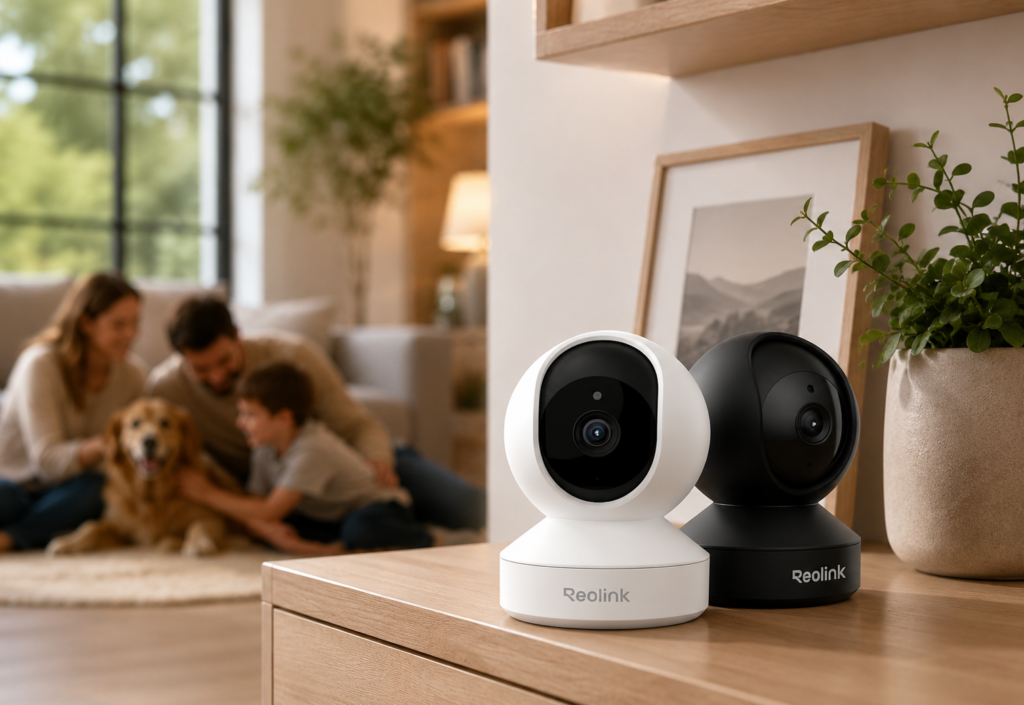
8. Reolink E1 — Best Pan-and-Tilt Camera
⭐⭐⭐⭐☆ 4.3/5
If you want one camera to monitor a wider area, pan-and-tilt functionality can be extremely useful.
The Reolink E1 allows you to remotely adjust the camera’s viewing direction, making it useful for larger rooms.
Why We Like It
- High-resolution video
- Pan and tilt
- Night vision
- Smart detection
- Local storage options
- Two-way audio
Best For
Large rooms where a fixed camera may leave blind spots.
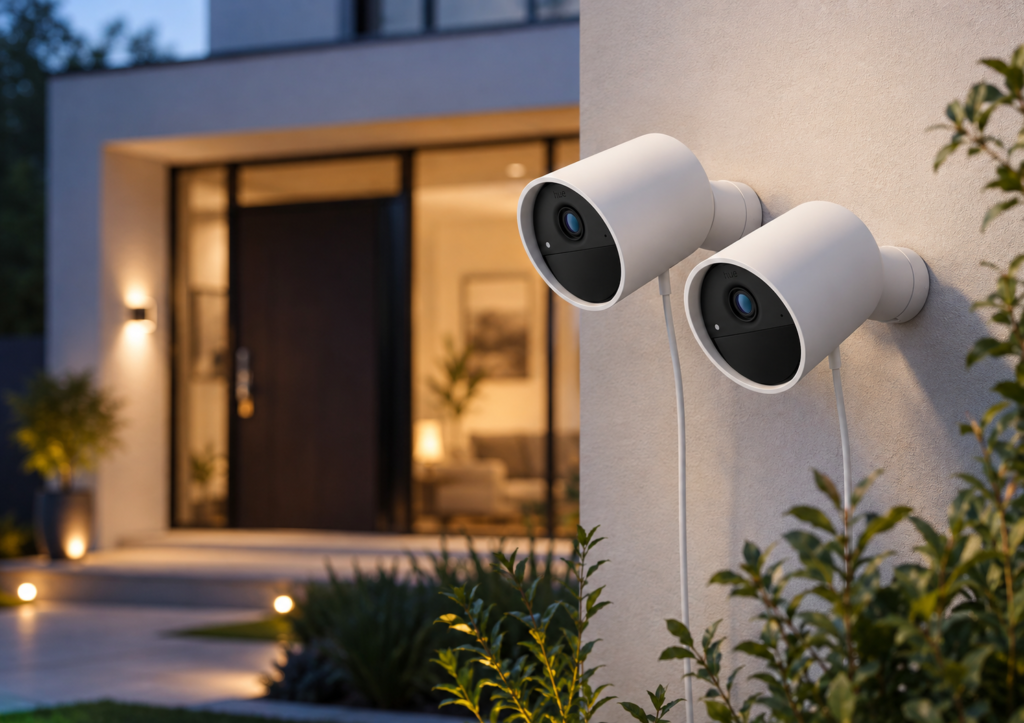
9. Philips Hue Secure Camera — Best Premium Smart-Home Option
⭐⭐⭐⭐ 4/5
If you already use Philips Hue products, the Hue Secure Camera can become part of a broader smart-home security setup.
It is particularly appealing to shoppers who want their security system and smart lighting to work together.
Why We Like It
- Premium design
- Smart-home integration
- Security alerts
- Night vision
- Two-way audio
- Works within the Hue ecosystem
Best For
Premium smart-home setups built around Philips Hue.
Consider Before Buying
The overall cost can be higher than basic indoor cameras, particularly when additional smart-home components or subscriptions are involved.
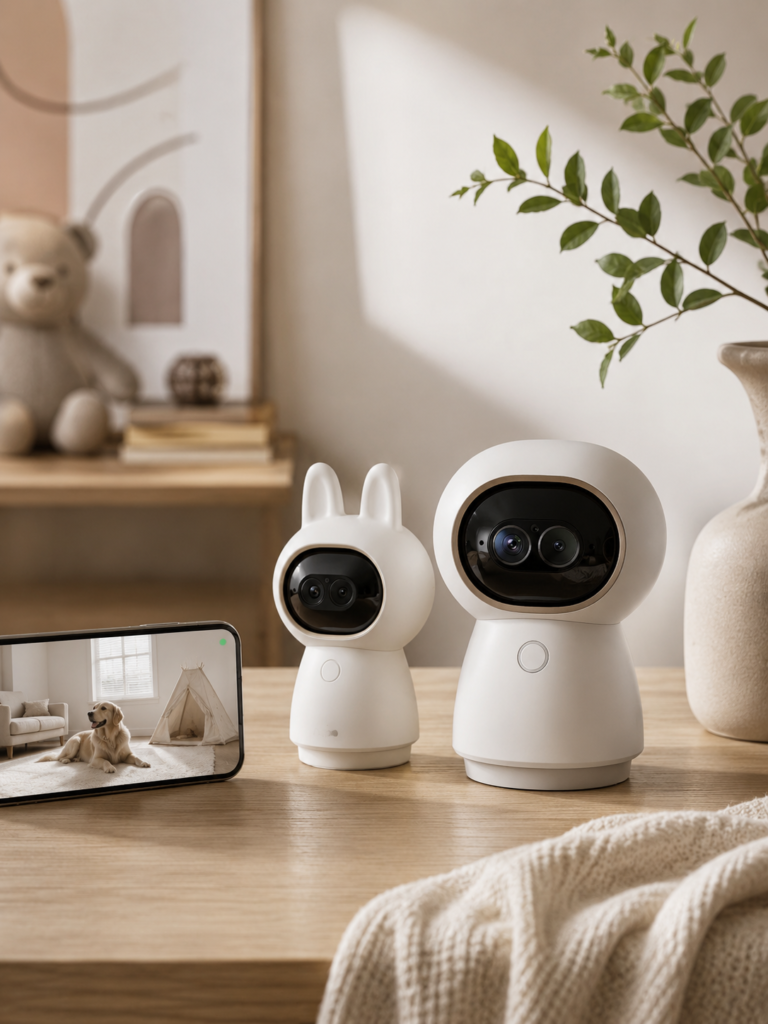
10. Aqara Camera Hub G350 — Best Smart-Home Hub
⭐⭐⭐⭐☆ 4.2/5
The Aqara Camera Hub G3 goes beyond traditional indoor camera functionality by combining camera monitoring with smart-home hub capabilities.
This makes it especially interesting for people who want to build more advanced automation routines.
Why We Like It
- 2K video
- Pan and tilt
- AI detection
- Smart-home hub functionality
- Local storage options
- Two-way audio
Best For
Smart-home enthusiasts who want security and automation in one device.
How to Choose the Best Indoor Security Camera
Buying an indoor camera is easier when you focus on the features that actually matter for your home.
Step 1: Decide What You Want to Monitor
Start by identifying the purpose of the camera.
Entryway
Prioritize:
- Wide field of view
- Motion detection
- Clear video
- Night vision
Living Room
Consider:
- Wide coverage
- Pan and tilt
- Person detection
- Two-way audio
Baby or Family Area
Prioritize:
- Reliable video
- Clear audio
- Privacy controls
- Stable connection
Pet Area
Look for:
- Two-way audio
- Wide viewing angle
- Motion alerts
- Pan and tilt
Home Office
Privacy becomes particularly important.
Consider a camera with:
- Physical privacy shutter
- Easy disable option
- Local storage
- Clear privacy settings
Step 2: Choose the Right Video Resolution
Resolution determines how much detail the camera can capture.
1080p
Good for:
- General monitoring
- Small rooms
- Entryways
- Basic security
2K
Provides more detail and can be useful when you want to identify objects or people more clearly.
4K
Provides even greater detail but generally costs more and can require more storage and bandwidth.
For most indoor applications, 1080p or 2K is enough.
Step 3: Check Night Vision
A security camera should still be useful when the lights are off.
Look for:
- Infrared night vision
- Good low-light performance
- Automatic day/night switching
- Clear nighttime images
If the camera will monitor an entryway or hallway at night, don’t treat night vision as an optional feature.
Step 4: Consider Pan and Tilt
A fixed camera watches one direction.
A pan-and-tilt camera can move horizontally and vertically.
This can be particularly useful in:
- Large living rooms
- Open-plan areas
- Pet rooms
- Playrooms
A single pan-and-tilt camera may cover an area that would otherwise require multiple fixed cameras.
Step 5: Look at Smart Detection
Basic cameras may send an alert whenever they detect movement.
More advanced cameras can distinguish between different types of activity.
Depending on the model, detection may include:
- Person detection
- Pet detection
- Vehicle detection
- Package detection
- Familiar-face recognition
Smart detection can significantly reduce unnecessary notifications.
Step 6: Decide Between Cloud and Local Storage
This is one of the most important buying decisions.
Cloud Storage
Advantages:
- Easy access from anywhere
- Automatic backups
- No memory card required
Disadvantages:
- Often requires a subscription
- Footage is stored on a company’s servers
- Ongoing costs
Local Storage
Advantages:
- Greater control over recordings
- Can reduce subscription costs
- Footage can remain within your home network
Disadvantages:
- Requires storage management
- Memory cards can fail
- Some advanced features may still require cloud services
Best Approach
If privacy and long-term cost are important, consider a camera that supports local storage alongside optional cloud storage.
Step 7: Check Whether a Subscription Is Required
A low camera price can sometimes be misleading.
Before purchasing, check whether important features require a monthly subscription.
Look specifically for:
- Video history
- Person detection
- Cloud recording
- Extended storage
- Advanced notifications
- AI features
Calculate the total cost over three years, not just the purchase price.
Step 8: Consider Privacy Features
Indoor cameras are different from outdoor cameras because they operate inside your private living space.
Look for:
- Physical privacy shutters
- Camera-off modes
- Microphone controls
- Local storage
- Clear privacy policies
- Account security features
A physical privacy shutter is particularly useful because it provides a visible indication that the lens is covered.
Step 9: Check Two-Way Audio
Two-way audio lets you communicate through the camera.
It can be useful for:
- Talking to family members
- Checking on pets
- Communicating with someone in another room
- Warning someone away from a restricted area
Look for cameras with clear microphones and speakers.
Step 10: Check Your Wi-Fi
Your camera is only as reliable as its network connection.
Before installation, consider:
- Wi-Fi strength
- Router location
- Distance from the camera
- Number of connected devices
- Internet speed
If possible, position cameras where they have a strong and stable connection.
Step 11: Consider Smart-Home Compatibility
If you already have smart-home devices, choose a camera that fits your existing ecosystem.
Common platforms include:
- Amazon Alexa
- Google Home
- Apple Home
- Samsung SmartThings
- Matter-compatible systems
Integration can allow you to create useful routines.
For example:
Motion detected → Turn on smart lights
or:
Night routine → Enable selected security devices
How to Install an Indoor Security Camera
Most indoor cameras are relatively simple to install.
Step 1: Choose the Location
Select an area with a clear view of the room.
Avoid placing the camera directly behind objects or in a position where bright windows dominate the frame.
Step 2: Check the Wi-Fi Signal
Before permanently positioning the camera, make sure the wireless connection is reliable.
Step 3: Connect the Camera
Plug it into power or charge the battery if applicable.
Step 4: Download the App
Install the manufacturer’s official app.
Step 5: Add the Camera
Follow the setup instructions to connect it to your account and home network.
Step 6: Adjust the Viewing Angle
Position the camera so that important areas are visible without unnecessarily recording private spaces.
Step 7: Configure Notifications
Choose which alerts you actually want.
For example:
Person detected → Notification
General movement → No notification
This can prevent alert fatigue.
Step 8: Configure Storage
Choose between local, cloud, or hybrid storage if supported.
Step 9: Test Day and Night Views
Check the image during both daylight and darkness.
Step 10: Review Privacy Settings
Before leaving the camera running, review:
- Microphone settings
- Privacy mode
- User permissions
- Recording settings
- Account security
Where Should You Place an Indoor Security Camera?
Placement can matter as much as camera specifications.
Good Locations
- Main entryway
- Living room
- Hallway
- Staircase
- Home office
- Pet area
Avoid
- Directly facing bright windows
- Areas with severe glare
- Places where the camera can easily be knocked down
- Private spaces where recording would be inappropriate
- Locations with weak Wi-Fi
For a home with multiple cameras, position them strategically rather than simply placing one in every room.
Indoor Security Camera Automation Ideas
A smart camera can become part of your wider home-automation system.
Away Mode
When everyone leaves:
Security cameras → Active
Smart lights → Selected schedule
Notifications → Enabled
Home Mode
When you return:
Indoor camera privacy mode → Enabled where appropriate
Lights → Normal routine
Night Mode
At bedtime:
Security cameras → Monitor selected areas
Lights → Off
Notifications → Priority alerts only
The exact capabilities depend on your camera and smart-home ecosystem.
Common Indoor Security Camera Mistakes
1. Choosing Resolution Over Everything Else
A 4K camera isn’t automatically better if its app, night vision, storage, or privacy features are poor.
2. Ignoring Subscription Costs
Always calculate the long-term cost of cloud storage and premium features.
3. Placing the Camera Facing a Window
Bright windows can cause exposure problems and make indoor footage difficult to see.
4. Ignoring Privacy
Indoor cameras should have clear privacy controls, especially in bedrooms, offices, and shared spaces.
5. Installing Too Many Cameras
More cameras don’t necessarily mean better security. Strategic placement is usually more effective.
6. Using Weak Account Security
Your camera account should use a strong, unique password and available multi-factor authentication.
7. Forgetting to Test Notifications
A camera isn’t particularly useful if you don’t receive important alerts.
Frequently Asked Questions
What is the best indoor security camera for home protection?
The TP-Link Tapo C210 is a strong overall choice because it combines 2K video, pan-and-tilt functionality, night vision, smart detection features, and flexible storage at an accessible price.
Is 1080p enough for an indoor security camera?
Yes. 1080p is sufficient for many indoor applications. However, 2K or 4K can provide more detail if you need to identify objects or people more clearly.
Should I choose local or cloud storage?
Local storage is attractive if you want more control over your recordings and potentially lower ongoing costs. Cloud storage is more convenient for remote access and automatic backups. A camera supporting both gives you more flexibility.
Do indoor security cameras work without Wi-Fi?
Most smart indoor cameras require Wi-Fi for remote access, notifications, and cloud features. Some cameras can record locally, but their functionality may be limited without a network connection.
Are indoor security cameras safe for privacy?
They can be, provided you use strong account security, review privacy settings, limit access, and choose a camera with appropriate privacy controls. Physical privacy shutters can provide an additional layer of reassurance.
Do security cameras record all the time?
It depends on the model and settings. Some cameras support continuous recording, while others primarily record when motion or another event is detected.
Do indoor security cameras need a subscription?
Not always. Some cameras offer local storage without a subscription, while others reserve certain recording and AI features for paid plans.
Can indoor cameras detect pets?
Many newer cameras can distinguish pets from general motion, although the accuracy and available features vary by model.
Can I use an indoor camera to monitor my front door?
Yes, but an outdoor-rated camera is generally better if the camera must be placed outside. An indoor camera can monitor an entryway from inside the home.
Final Verdict
The best indoor security camera for your home depends on what you want to monitor and how much control you want over your recordings.
For most shoppers, the TP-Link Tapo C210 offers an excellent combination of useful features and value. If you’re already invested in Google Home or Alexa, the Google Nest Cam Indoor or Ring Indoor Cam can provide smoother ecosystem integration.
For shoppers focused on privacy, look for a camera with a physical privacy shutter. If long-term storage costs matter, consider local storage. And if you want one camera to cover a larger room, pan-and-tilt functionality can be particularly valuable.
Before purchasing, prioritize video quality, night vision, smart detection, storage, privacy, connectivity, and subscription costs rather than choosing a camera based on resolution alone.
The right camera should give you useful visibility and peace of mind while respecting the privacy of everyone in your home.
Indoor Security Camera Buying Checklist
- Decide what you want to monitor
- Choose 1080p, 2K, or 4K resolution
- Check night-vision performance
- Decide whether pan and tilt are necessary
- Compare smart-detection features
- Choose cloud, local, or hybrid storage
- Calculate subscription costs
- Check privacy features
- Look for two-way audio
- Test your Wi-Fi coverage
- Check Alexa, Google Home, Apple Home, or Matter compatibility
- Review account-security features
- Configure useful notifications
- Position the camera carefully
- Respect the privacy of people being recorded